
Enabling Link Sharing in Booking.com for Partners Extranet Messages: A Step-by-Step Guide
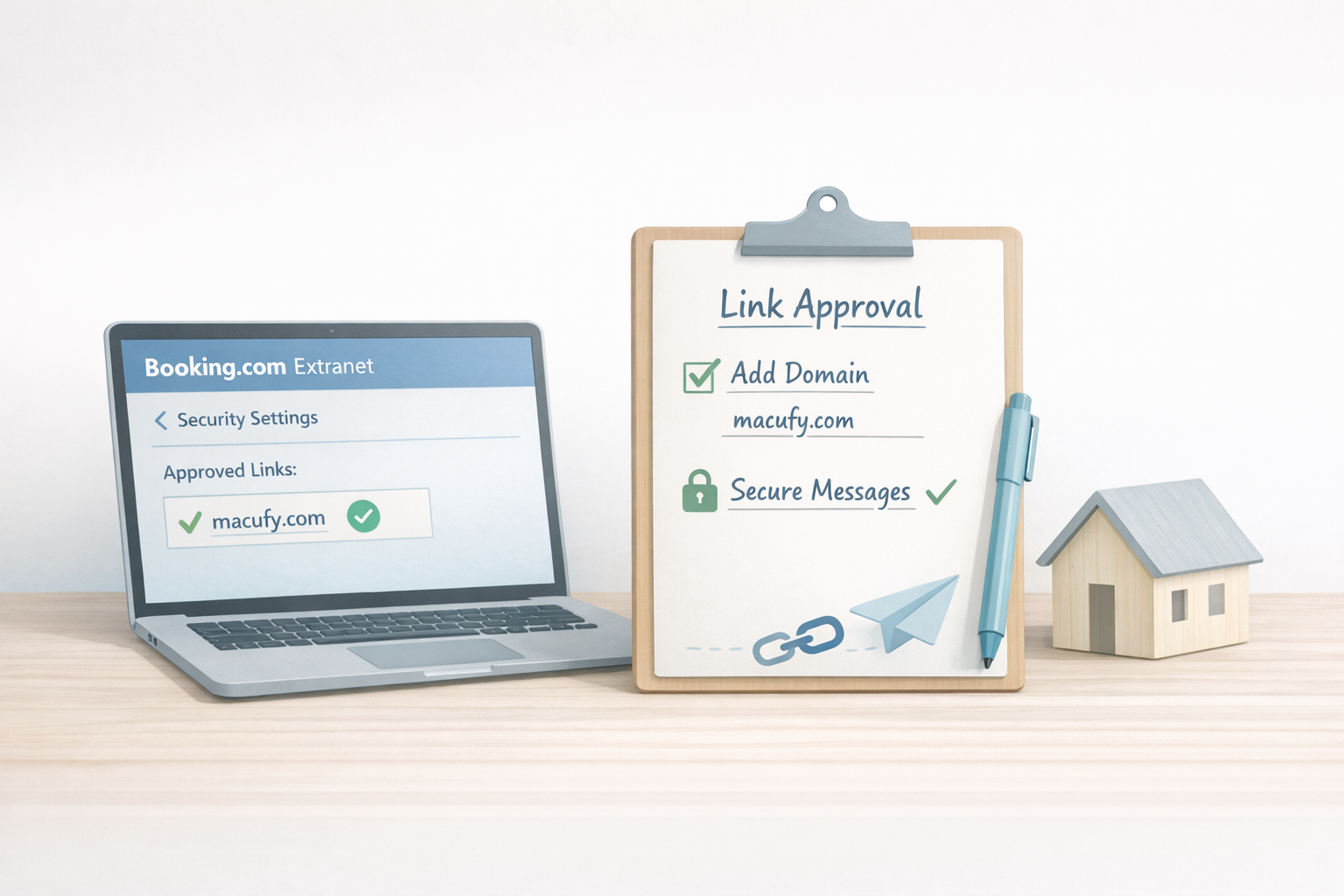
La comunicación con los huéspedes es, sin lugar a dudas, uno de los pilares fundamentales para el éxito en la gestión de cualquier alojamiento, ya sea un vibrante hotel boutique, un conjunto de apartamentos turísticos o una encantadora casa vacacional. En la era digital actual, donde la inmediatez y la seguridad son tan valoradas, la forma en que interactuamos con nuestros huéspedes puede definir su experiencia incluso antes de que pongan un pie en nuestra propiedad. En los últimos años, plataformas líderes como Booking.com han intensificado significativamente sus esfuerzos para fortalecer la seguridad de su sistema de mensajería. Este movimiento estratégico tiene un objetivo claro y vital: proteger tanto a las propiedades como a los huéspedes de las crecientes amenazas de fraude, intentos de suplantación de identidad (phishing) y otras actividades maliciosas que lamentablemente proliferan en el entorno online.
Como resultado directo de estas mejoras en la seguridad, se ha implementado una política crucial: los enlaces externos ya no pueden ser enviados libremente por defecto a través de la plataforma de mensajería de Booking.com. Ahora, para que un enlace externo llegue a su destino, debe ser explícitamente aprobado y configurado dentro del Extranet de Booking.com. Esta medida, aunque inicialmente puede parecer un paso adicional, es una salvaguarda esencial en el ecosistema de reservas online.
Esta guía exhaustiva ha sido diseñada para brindarle una comprensión profunda de qué implica este cambio, por qué es de vital importancia para la operación de su alojamiento y, lo más crucial, cómo habilitar correctamente el envío de enlaces desde el Extranet de Booking.com para Partners. No solo cubriremos los aspectos generales, sino que, al final de este artículo, encontrará una sección dedicada que explica cómo añadir el dominio macufy.com. Esto es fundamental para asegurar que sus huéspedes reciban sin contratiempos el enlace de check-in online, garantizando una experiencia fluida y moderna desde el primer contacto.
La Imperiosa Necesidad: ¿Por Qué Booking.com Bloquea los Enlaces en los Mensajes?
En el vasto y complejo mundo de las transacciones y comunicaciones online, la ciberseguridad se ha convertido en una preocupación primordial. Booking.com, como una de las plataformas de reservas más grandes y confiables del planeta, maneja millones de interacciones diarias. Esta escala, lamentablemente, la convierte en un objetivo atractivo para actores malintencionados que buscan explotar vulnerabilidades. Es por ello que la plataforma ha implementado controles de seguridad avanzados en su sistema de mensajería interno, con el propósito explícito de reducir drásticamente el riesgo de ataques de phishing. Estos ataques, tristemente comunes, a menudo se basan en el uso de enlaces falsos o engañosos diseñados para manipular a los huéspedes, incitándolos a compartir datos personales sensibles o a realizar pagos fraudulentos fuera del sistema seguro de Booking.com.
Imaginemos el escenario: un huésped recibe un mensaje que parece legítimo, con un enlace que promete ser para un pago final o una actualización de reserva. Sin embargo, al hacer clic, es redirigido a una página web fraudulenta que imita la interfaz de Booking.com o de su banco. Si el huésped introduce sus credenciales o datos bancarios en esta página falsa, estos caen directamente en manos de los estafadores. Las consecuencias pueden ser devastadoras: desde cargos no autorizados hasta el robo de identidad, y una profunda erosión de la confianza tanto en la propiedad como en la plataforma.
Impacto Directo de las Medidas de Seguridad en su Comunicación
Como resultado de estas esenciales medidas de seguridad, la forma en que los enlaces son gestionados ha cambiado significativamente. Es crucial entender las implicaciones directas para la comunicación de su propiedad:
-
Remoción Automática de Enlaces No Aprobados: Si un enlace externo no ha sido previamente aprobado y configurado en el Extranet, el sistema de Booking.com lo detectará automáticamente y lo eliminará del mensaje antes de que este llegue al huésped. Esto significa que la información vital que usted pretendía compartir simplemente no llegará.
-
Mensajes Completos Bloqueados: En algunos casos, la medida de seguridad puede ser aún más drástica. Si un mensaje contiene un enlace no aprobado y el sistema lo considera de alto riesgo, existe la posibilidad de que el mensaje completo no sea entregado en absoluto. Esto puede generar una falta total de comunicación, dejando a los huéspedes sin información clave y a usted sin la certeza de que sus mensajes se están enviando.
-
Placeholders como "[enlace eliminado]": Para alertar al huésped y a la propiedad sobre la intervención, en lugar del enlace original, los huéspedes pueden ver un texto sustituto como "[enlace eliminado]" o "[link removed]". Esto no solo es poco profesional, sino que también puede generar confusión, frustración y la necesidad de una comunicación manual adicional para aclarar la situación.
-
Fallo de Mensajes Automatizados: Para las propiedades que confían en la eficiencia de los sistemas de automatización (como Macufy.com para el check-in online), esta restricción es particularmente crítica. Los mensajes automatizados que contienen enlaces esenciales (como los de check-in, solicitudes de pago, guías de llegada o manuales digitales) pueden fallar por completo. Esto anula el propósito de la automatización, aumentando la carga de trabajo manual y comprometiendo la experiencia del huésped.
Dada la magnitud de estas consecuencias, queda claro que para los proveedores de alojamiento, configurar correctamente los enlaces aprobados no es una opción, sino una acción esencial y obligatoria para mantener una comunicación eficaz, segura y automatizada con sus huéspedes. Ignorar esta configuración puede llevar a interrupciones significativas en sus operaciones y a una experiencia del huésped deficiente.
Comprendiendo el Concepto: ¿Qué son los "Enlaces Aprobados" en Booking.com para Partners?
Ante la necesidad de equilibrar la seguridad con la funcionalidad, Booking.com ha desarrollado una solución inteligente y práctica: el sistema de "Enlaces Aprobados". Dentro de su Extranet, la plataforma ofrece una configuración específica y de fácil acceso que permite a los partners, es decir, a usted como gestor de propiedades, definir de antemano qué dominios web están autorizados para ser compartidos con los huéspedes a través de su plataforma de mensajería. Esta funcionalidad es la clave para desbloquear una comunicación externa fluida y segura.
Aspectos Fundamentales a Tener en Cuenta sobre los Enlaces Aprobados:
Para garantizar una configuración exitosa y evitar errores comunes, es vital comprender la naturaleza exacta de lo que se debe añadir:
-
Aprobación de Dominios, No de URLs Completas: La característica más importante a recordar es que usted aprueba únicamente dominios, no direcciones URL completas con sus rutas y parámetros específicos. Este enfoque a nivel de dominio es una medida de seguridad que previene la aprobación accidental de enlaces maliciosos que podrían residir en subdirectorios de un dominio legítimo si se permitieran URLs completas. Por ejemplo, si aprueba "example.com", cualquier enlace que comience con ese dominio (como "https://example.com/checkin", "http://www.example.com/guest-guide", o "https://subdomain.example.com/payment") será considerado seguro y permitido.
-
Ejemplo Práctico: Para ilustrarlo mejor, si usted desea enviar un enlace a la página de check-in online de su propiedad, que podría ser
https://example.com/checkin?booking=123, lo que debe añadir en la configuración de Booking.com es simplementeexample.com. No debe incluir ni el protocolo (https://), ni la ruta específica (/checkin), ni los parámetros de consulta (?booking=123). -
Filtrado Riguroso: Cualquier enlace que utilice un dominio que no haya sido previamente aprobado y configurado en esta sección será automáticamente filtrado y eliminado, con las consecuencias que ya hemos detallado.
Beneficios de un Sistema de Enlaces Aprobados Bien Configurado:
Este sistema, lejos de ser una simple barrera, es una herramienta poderosa que le permite, de forma segura y eficiente, compartir una variedad de recursos externos que enriquecen la experiencia del huésped y optimizan sus operaciones:
-
Enlaces de Check-in Online: Permite a sus huéspedes acceder a plataformas de check-in digital, como Macufy.com, agilizando el proceso de llegada y reduciendo la carga administrativa en la recepción.
-
Instrucciones de Llegada Detalladas: Comparta enlaces a guías visuales, videos o mapas interactivos que faciliten la llegada y el acceso a su propiedad, especialmente útil para propiedades sin recepción 24/7.
-
Páginas de Pago Externas: Si utiliza un procesador de pagos externo para depósitos de seguridad o pagos adicionales, puede compartir enlaces directos y seguros para que los huéspedes completen estas transacciones.
-
Guías Digitales para Huéspedes: Ofrezca a sus huéspedes acceso a una guía digital completa de su propiedad y de la zona local, con recomendaciones de restaurantes, atracciones y servicios, todo a través de un enlace seguro.
-
Integración con Sistemas de Gestión de Propiedades (PMS) y Channel Managers: Facilita la comunicación automatizada generada por estas herramientas, asegurando que los mensajes pre-programados con enlaces lleguen a los huéspedes sin interrupciones.
En resumen, el sistema de enlaces aprobados le otorga el control necesario para mantener un entorno de mensajería seguro, al tiempo que le brinda la flexibilidad de aprovechar al máximo las herramientas externas que optimizan la gestión de su alojamiento y mejoran la satisfacción del cliente. Es una inversión de tiempo mínima que rinde grandes beneficios en términos de eficiencia operativa y experiencia del huésped.
Preparativos Esenciales: Requisitos Antes de Habilitar los Enlaces Aprobados
Antes de sumergirse en la configuración de los enlaces aprobados en el Extranet de Booking.com, es crucial asegurarse de que cumple con ciertos requisitos previos. Estos pasos no solo garantizan que pueda acceder a las configuraciones necesarias, sino que también le permiten realizar el proceso de manera eficiente y segura. Ignorar estos preparativos podría resultar en frustraciones o en la imposibilidad de completar la configuración.
1. Acceso de Administrador: La Llave Maestra del Extranet
La configuración de seguridad, por su naturaleza crítica, está restringida a usuarios con los permisos adecuados. Solo los usuarios que poseen permisos de administrador en su cuenta del Extranet de Booking.com tienen la capacidad de modificar las configuraciones de seguridad relacionadas con la mensajería. Esto es una medida de protección para evitar cambios no autorizados que podrían comprometer la seguridad o la operatividad de su propiedad.
-
Verifique sus Permisos: Si usted no es el administrador principal de la cuenta, asegúrese de que la persona que tiene estos permisos esté disponible para realizar la configuración o para otorgarle temporalmente los accesos necesarios, si es posible y seguro.
-
¿Cómo saber si tengo permisos de administrador? Generalmente, el usuario que registró la propiedad en Booking.com es el administrador. Si no está seguro, puede intentar acceder a la sección "Cuenta" o "Administrar usuarios" en el Extranet. Si ve opciones para añadir o modificar permisos de otros usuarios, es probable que tenga privilegios de administrador.
-
Implicaciones de no tener acceso: Si no tiene acceso de administrador, no podrá ver ni modificar la sección de "Configuración de seguridad" dentro de "Preferencias de mensajería". Esto significa que deberá contactar al administrador de su cuenta o al soporte de Booking.com para obtener ayuda.
2. Autenticación de Dos Factores (2FA): Su Capa Extra de Seguridad
Booking.com, al igual que muchas plataformas online que manejan información sensible, exige un nivel de seguridad adicional para acceder a configuraciones críticas. Por ello, la autenticación de dos factores (2FA) es un requisito indispensable antes de acceder a las configuraciones relacionadas con la seguridad, incluyendo la gestión de enlaces aprobados. La 2FA añade una capa de protección al requerir no solo su contraseña, sino también un segundo factor de verificación (como un código enviado a su teléfono móvil o generado por una aplicación de autenticación).
-
Asegúrese de tenerla configurada: Si aún no ha configurado la 2FA para su cuenta de Booking.com, se le pedirá que lo haga antes de continuar. Es un proceso sencillo que implica vincular su número de teléfono o una aplicación de autenticación (como Google Authenticator o Authy) a su cuenta.
-
Tenga su dispositivo a mano: Cuando intente acceder a las configuraciones de seguridad, se le solicitará el código de 2FA. Asegúrese de tener a mano el dispositivo (teléfono móvil o tablet) donde recibe estos códigos.
-
Beneficios de la 2FA: Más allá de ser un requisito, la 2FA protege su cuenta de accesos no autorizados, incluso si su contraseña es comprometida. Es una práctica de seguridad fundamental que recomendamos encarecidamente para todas sus cuentas online.
3. Una Lista Clara de Dominios que Utiliza: Organización es Clave
Antes de empezar a añadir dominios a la lista de aprobados, tómese un momento para identificar y recopilar todos los dominios de las herramientas y plataformas externas en las que su propiedad confía para sus operaciones. Una lista exhaustiva y precisa le permitirá configurar los enlaces aprobados de una sola vez, evitando omisiones y futuras interrupciones.
-
Identifique sus herramientas: Piense en todos los sistemas que utiliza y que envían enlaces a sus huéspedes:
-
Sistemas de Check-in Online: Como Macufy.com.
-
Soluciones de Pago Externas: Pasarelas de pago para depósitos o saldos finales.
-
Sistemas de Gestión de Propiedades (PMS) o Channel Managers: Si envían comunicaciones automatizadas.
-
Aplicaciones de Cerraduras Inteligentes: Para la generación de códigos de acceso o llaves digitales.
-
Guías Digitales para Huéspedes: Plataformas que alojan sus manuales de bienvenida.
-
Servicios de Encuestas de Satisfacción: Para recopilar feedback post-estancia.
-
-
Anote solo el dominio raíz: Recuerde que solo necesita el dominio principal (por ejemplo,
macufy.com,stripe.com,guesty.com). No incluya "www.", "https://", ni subdirectorios. -
Revise periódicamente: Las herramientas que utiliza pueden cambiar con el tiempo. Es una buena práctica revisar esta lista y las configuraciones de enlaces aprobados de forma regular (por ejemplo, trimestralmente) para asegurarse de que todo sigue siendo relevante y está actualizado.
Al asegurarse de cumplir con estos requisitos previos, estará preparado para navegar por el Extranet de Booking.com y configurar sus enlaces aprobados de manera eficiente y sin contratiempos, garantizando que su comunicación con los huéspedes sea siempre efectiva y segura.
Ruta Exacta para Habilitar el Envío de Enlaces en el Extranet de Booking.com
Saber exactamente dónde encontrar la configuración de los enlaces aprobados es el primer paso práctico para asegurar que su comunicación fluya sin interrupciones. El Extranet de Booking.com es una plataforma robusta con numerosas opciones, y localizar la función específica puede ser un desafío si no se conoce la ruta precisa. Aquí le proporcionamos el camino oficial y actual dentro de la plataforma para configurar los enlaces aprobados.
Navegación Paso a Paso en el Extranet:
Para configurar los enlaces aprobados, siga esta secuencia de navegación exacta en el Extranet de Booking.com:
Propiedad → Preferencias de mensajería → Configuración de seguridad → Sus enlaces aprobados
Analicemos cada paso de esta ruta para que no haya margen de error:
-
Propiedad: Una vez que haya iniciado sesión en el Extranet de Booking.com, el primer elemento que deberá buscar en el menú principal (generalmente ubicado en el lado izquierdo de la pantalla) es la sección "Propiedad". Esta sección alberga todas las configuraciones y detalles específicos de su alojamiento, desde la información básica hasta los servicios y políticas.
-
Preferencias de mensajería: Al hacer clic en "Propiedad", se desplegará un submenú con varias opciones. Busque y seleccione "Preferencias de mensajería". Esta sección está dedicada a cómo usted se comunica con sus huéspedes, incluyendo plantillas de mensajes, respuestas automáticas y, por supuesto, configuraciones de seguridad relacionadas con la comunicación.
-
Configuración de seguridad: Dentro de "Preferencias de mensajería", encontrará varias subsecciones. Identifique y haga clic en "Configuración de seguridad". Como su nombre indica, esta es la puerta de entrada a todas las opciones que Booking.com ofrece para proteger su cuenta y las interacciones con sus huéspedes. Es en este punto donde, si no tiene la 2FA configurada o no ha iniciado sesión con ella, se le solicitará que complete este paso de seguridad adicional.
-
Sus enlaces aprobados: Una vez dentro de "Configuración de seguridad", deberá ver una opción o un apartado claramente etiquetado como "Sus enlaces aprobados" o "Approved links". Esta es la sección donde podrá ver los dominios ya aprobados y, lo más importante, añadir nuevos dominios a su lista de confianza.
Esta es la ubicación oficial y actual de la configuración dentro de la plataforma. Booking.com actualiza su interfaz periódicamente, pero esta ruta ha permanecido consistente para las configuraciones de seguridad de mensajería. Familiarizarse con esta navegación le ahorrará tiempo y le permitirá gestionar sus enlaces externos de manera eficiente.
Guía Paso a Paso para Añadir Enlaces Aprobados en Booking.com
Una vez que ha comprendido la importancia de los enlaces aprobados y ha verificado los requisitos previos, el siguiente paso es la acción. Esta guía detallada le llevará a través de cada etapa del proceso para añadir dominios a su lista de enlaces aprobados en el Extranet de Booking.com, asegurando que sus mensajes lleguen a sus huéspedes sin problemas.
1. Inicie Sesión en el Extranet de Booking.com
El primer paso es acceder a su cuenta. Diríjase a la URL oficial del Extranet: https://admin.booking.com. Utilice sus credenciales habituales (nombre de usuario y contraseña) para iniciar sesión. Asegúrese siempre de que está en la URL correcta para evitar sitios fraudulentos.
2. Seleccione la Propiedad Correcta (si gestiona varias)
Si usted es un gestor de propiedades que supervisa múltiples alojamientos bajo una misma cuenta de Booking.com, es fundamental que se asegure de haber seleccionado la propiedad correcta antes de proceder con cualquier cambio. En la parte superior del Extranet, generalmente verá un menú desplegable con los nombres de sus propiedades. Haga clic en él y elija el alojamiento específico para el cual desea configurar los enlaces aprobados. Un error en este paso podría llevar a aplicar la configuración a la propiedad equivocada o a no aplicarla donde es necesario.
3. Abra "Preferencias de Mensajería"
En el menú principal, ubicado en el lado izquierdo de su pantalla, busque y haga clic en la opción "Propiedad". Al desplegarse el submenú, seleccione "Preferencias de mensajería". Esta sección es su centro de control para toda la comunicación con los huéspedes.
4. Acceda a "Configuración de Seguridad"
Dentro de "Preferencias de mensajería", verá varias pestañas o subsecciones. Localice y haga clic en "Configuración de seguridad". Este es el punto crítico donde Booking.com le solicitará un paso adicional de verificación si no lo ha hecho recientemente:
-
Complete la Autenticación de Dos Factores (2FA): Si se le solicita, complete el proceso de autenticación de dos factores. Esto implicará introducir un código que se le enviará a su teléfono móvil o que generará una aplicación de autenticación. Este paso es esencial para proteger el acceso a configuraciones sensibles.
5. Encuentre "Sus Enlaces Aprobados"
Una vez que haya accedido a la "Configuración de seguridad" y, si es necesario, completado la 2FA, desplácese hacia abajo en la página hasta que encuentre la sección titulada "Sus enlaces aprobados". En esta sección, observará lo siguiente:
-
Lista de Dominios Existentes: Si ya ha configurado enlaces previamente, verá una lista de los dominios que han sido aprobados para su propiedad.
-
Opción "Añadir un enlace": Justo debajo o junto a la lista, encontrará un botón o un campo etiquetado como "Añadir un enlace" o similar. Esta es la funcionalidad que utilizará para añadir nuevos dominios.
6. Añada el Dominio Deseado
Haga clic en el botón "Añadir un enlace". Se abrirá un campo de texto donde deberá introducir el dominio que desea aprobar. Es crucial que siga esta regla al pie de la letra:
-
Introduzca SOLO el dominio: No incluya el protocolo (
https://ohttp://), ni la parte "www" (a menos que el servicio solo funcione con www), ni ninguna ruta específica (/checkin), ni parámetros de consulta (?booking=123). -
Ejemplos Clave:
-
✅ Correcto:
example.com -
❌ Incorrecto:
https://example.com/checkin?booking=123 -
✅ Correcto para Macufy:
macufy.com
-
Una vez que haya introducido el dominio correctamente, asegúrese de hacer clic en el botón "Guardar" o "Añadir" para aplicar los cambios. Si no guarda, el dominio no se añadirá y sus mensajes seguirán siendo bloqueados.
7. Aplicar a Todas las Propiedades (Opcional, pero Recomendado para Múltiples Propiedades)
Si gestiona varias propiedades bajo la misma cuenta de Booking.com, la plataforma le ofrece una característica muy útil para ahorrar tiempo y garantizar la consistencia. Después de añadir un dominio a una propiedad, es posible que vea una opción para "Aplicar esta configuración a todas mis propiedades" o "Apply to all properties".
-
Ventajas: Utilizar esta opción es altamente recomendable, ya que replica la configuración de enlaces aprobados a todos sus alojamientos con un solo clic. Esto elimina la necesidad de repetir el proceso manualmente para cada propiedad, reduciendo el riesgo de errores y asegurando que todos sus alojamientos puedan enviar los mismos enlaces de forma segura.
-
Cuándo no usarla: Solo evite esta opción si tiene un motivo específico para que algunas propiedades tengan una lista de enlaces aprobados diferente a otras. Sin embargo, para la mayoría de los casos (especialmente para herramientas centrales como el check-in online), la aplicación global es la solución más eficiente.
Una vez completados estos pasos, sus enlaces aprobados deberían estar activos. Sin embargo, la mejor práctica es siempre realizar una prueba enviando un mensaje a un huésped de prueba (o a usted mismo si es posible) para confirmar que los enlaces se entregan correctamente.
Errores Comunes a Evitar al Configurar los Enlaces Aprobados
Aunque el proceso de configuración de enlaces aprobados en Booking.com es relativamente sencillo, existen varios errores comunes que pueden llevar a que los enlaces sigan siendo bloqueados o que la configuración no funcione como se espera. Ser consciente de estos errores le ayudará a evitarlos y a garantizar una comunicación fluida y segura con sus huéspedes.
1. Añadir URLs Completas en Lugar de Solo el Dominio
Este es, con diferencia, el error más frecuente y el que causa la mayoría de los problemas. El sistema de Booking.com está diseñado para aprobar dominios raíz, no direcciones URL completas.
-
El Error: Intentar añadir
https://macufy.com/checkin?booking=123o inclusowww.macufy.com/checkin. -
La Consecuencia: El sistema no reconocerá la entrada como un dominio válido y el enlace seguirá siendo bloqueado, o el mensaje podría ser rechazado.
-
La Solución: Siempre introduzca solo el dominio principal. Para Macufy.com, es simplemente
macufy.com. Para Stripe (una pasarela de pago), seríastripe.com.
2. Olvidar Guardar o Aplicar los Cambios
Después de introducir un nuevo dominio, es fácil pasar por alto el paso final de guardar la configuración.
-
El Error: Introducir el dominio y luego navegar fuera de la página sin hacer clic en el botón "Guardar" o "Añadir".
-
La Consecuencia: Los cambios no se aplicarán y la lista de enlaces aprobados no se actualizará, dejando sus mensajes sin cambios.
-
La Solución: Siempre confirme que ha hecho clic en el botón de guardar correspondiente después de cada adición o modificación.
3. Dejar la Opción "Bloquear Todos los Enlaces" Habilitada
Dentro de la sección de seguridad de mensajería, puede haber una opción general para bloquear todos los enlaces. Si esta opción está activa, anulará cualquier dominio que usted haya aprobado individualmente.
-
El Error: Haber habilitado previamente una opción de "Bloquear todos los enlaces externos" y no desactivarla al configurar los enlaces aprobados.
-
La Consecuencia: Incluso si ha añadido dominios a la lista de aprobados, esta configuración general priorizará el bloqueo, impidiendo la entrega de todos los enlaces.
-
La Solución: Revise cuidadosamente todas las opciones en la "Configuración de seguridad" y asegúrese de que no haya ninguna configuración que anule sus enlaces aprobados.
4. No Probar los Mensajes Después de la Configuración
La configuración es solo la mitad de la batalla; la verificación es la otra mitad. Asumir que todo funciona correctamente sin una prueba puede llevar a problemas cuando más importa.
-
El Error: Configurar los enlaces y no enviar un mensaje de prueba para verificar su entrega.
-
La Consecuencia: Descubrir que los enlaces no funcionan solo cuando un huésped real se queja o no puede acceder a la información crucial.
-
La Solución: Después de configurar los dominios, envíe un mensaje de prueba a una reserva de prueba (si es posible) o a usted mismo (si Booking.com lo permite) para confirmar que el enlace se muestra correctamente y es accesible.
5. Olvidar Añadir Ambas Versiones (www y no-www) si Aplica
Aunque Booking.com generalmente maneja las redirecciones, algunos dominios o configuraciones específicas podrían requerir que se aprueben ambas variantes.
-
El Error: Añadir solo
example.comcuando algunos de sus enlaces podrían usarwww.example.com, y el sistema no los resuelve automáticamente. -
La Consecuencia: Los enlaces que usan la versión no aprobada podrían ser bloqueados.
-
La Solución: En la mayoría de los casos, solo el dominio raíz es suficiente. Sin embargo, si experimenta problemas persistentes con enlaces que usan
www, considere añadir ambas versiones:example.comywww.example.com. Para Macufy.com, basta conmacufy.com, ya que nuestra infraestructura gestiona las redirecciones de forma transparente.
6. Errores Tipográficos en el Dominio
Un simple error de escritura puede invalidar completamente un dominio.
-
El Error: Introducir
macufy.comcomomacufy.coomomacufi.com. -
La Consecuencia: El dominio no será reconocido y los enlaces serán bloqueados.
-
La Solución: Revise cuidadosamente la ortografía de cada dominio que añada. Es mejor copiar y pegar el dominio directamente de la barra de direcciones de su navegador (excluyendo el protocolo y la ruta) para asegurar la precisión.
Evitar estos errores comunes le ahorrará tiempo y frustraciones, asegurando que su sistema de enlaces aprobados funcione de manera impecable desde el primer momento.
Las Consecuencias de No Habilitar los Enlaces Aprobados: Un Riesgo Innecesario
La omisión de configurar los enlaces aprobados en el Extranet de Booking.com puede parecer un detalle menor en la vorágine de la gestión de un alojamiento, pero sus implicaciones son profundas y pueden afectar negativamente tanto la eficiencia operativa como, lo que es más crítico, la experiencia del huésped. En un mercado tan competitivo, cada interacción cuenta, y las interrupciones en la comunicación pueden tener un costo significativo.
1. Interrupción Crítica del Check-in Online y Otros Procesos Automatizados
Para muchas propiedades modernas, el check-in online es una piedra angular de la eficiencia y la comodidad. Plataformas como Macufy.com permiten a los huéspedes completar el proceso de registro antes de su llegada, ahorrando tiempo y recursos. Sin embargo, si los enlaces aprobados no están configurados:
-
Los enlaces de check-in online pueden nunca llegar al huésped: Esto significa que el huésped no podrá acceder a la plataforma de check-in digital. El propósito de la automatización se anula, y se pierde la oportunidad de ofrecer una experiencia moderna y fluida.
-
Retrasos en la llegada y frustración del huésped: Si el huésped llega sin haber completado el check-in, deberá hacerlo en el sitio, lo que puede generar colas, esperas y una primera impresión negativa. Esto es especialmente problemático para propiedades sin recepción 24/7 o con llegadas autónomas.
-
Impacto en otros enlaces críticos: No solo afecta al check-in. Los enlaces a guías digitales, instrucciones de acceso a cerraduras inteligentes, o páginas de pago externas también serán bloqueados, paralizando otros procesos esenciales.
2. Bloqueo Parcial o Total de Mensajes
La seguridad de Booking.com es proactiva. Si detecta un enlace no aprobado, las consecuencias no se limitan solo a la remoción del enlace:
-
Mensajes parcialmente bloqueados: Como se mencionó, el huésped puede ver un "[enlace eliminado]" en lugar de la información vital. Esto crea confusión y requiere que el huésped se comunique de nuevo para obtener la información, o que la propiedad la envíe por otros medios.
-
Mensajes completamente bloqueados: En casos más severos, si el sistema detecta un patrón sospechoso o un riesgo elevado, el mensaje entero puede no ser entregado. Esto es particularmente grave, ya que la propiedad ni siquiera sabrá que su comunicación no ha llegado al huésped.
3. Aumento de la Carga de Trabajo Operacional
La automatización está diseñada para liberar tiempo y recursos. Cuando esta falla, la carga de trabajo manual se dispara:
-
Comunicación manual intensificada: Si los enlaces de check-in o las instrucciones no llegan, el personal de la propiedad tendrá que contactar a cada huésped individualmente por teléfono o correo electrónico para proporcionar la información. Esto consume un tiempo valioso y desvía al personal de otras tareas importantes.
-
Gestión de quejas y aclaraciones: Los huéspedes frustrados por la falta de información o los enlaces rotos se pondrán en contacto para pedir aclaraciones, aumentando el volumen de consultas de soporte.
-
Ineficiencia y costos ocultos: El tiempo que el personal dedica a resolver estos problemas es un costo oculto que afecta la rentabilidad del negocio. La ineficiencia se convierte en un lastre operativo.
4. Deterioro de la Experiencia del Huésped y Reputación
La primera impresión es duradera. Una comunicación deficiente antes de la llegada puede arruinar la experiencia desde el principio:
-
Frustración y estrés pre-llegada: Los huéspedes esperan una comunicación clara y eficiente. Si no reciben enlaces esenciales, pueden sentirse desatendidos o inseguros sobre su llegada.
-
Reseñas negativas: Una mala experiencia de comunicación puede traducirse en reseñas negativas online, afectando la reputación de la propiedad y su atractivo para futuros huéspedes.
-
Pérdida de confianza: Si el huésped percibe que la propiedad no es organizada o no se comunica eficazmente, su confianza en el alojamiento se verá mermada, incluso antes de la estancia.
5. Riesgo de Pérdida de Reservas o Cancelaciones
En casos extremos, una comunicación fallida puede llevar a problemas mayores:
-
Cancelaciones por falta de información: Un huésped que no puede obtener las instrucciones de llegada o completar el check-in online podría, en su frustración, optar por cancelar la reserva y buscar otra opción.
-
Problemas de acceso: Si un huésped llega y no puede acceder a la propiedad porque el enlace con el código de la cerradura fue bloqueado, esto no solo es una enorme molestia, sino que puede llevar a situaciones de emergencia y reembolsos.
Para las propiedades que utilizan sistemas automatizados y buscan ofrecer una experiencia de huésped moderna y eficiente, la configuración de los enlaces aprobados es, por tanto, una acción crítica e ineludible. Es una inversión mínima de tiempo que protege su operación de una cascada de problemas potenciales y asegura que la primera impresión de su propiedad sea siempre positiva.
Cómo Añadir macufy.com para Enviar Enlaces de Check-in Online: Un Paso Esencial para la Gestión Moderna
Si su propiedad ya confía en Macufy.com para optimizar su proceso de check-in online, sabe el valor que aporta en términos de eficiencia, ahorro de tiempo y mejora de la experiencia del huésped. Macufy permite automatizar el registro de datos, la verificación de identidad y la recopilación de información esencial antes de la llegada, lo que se traduce en una bienvenida más rápida y sin fricciones. Sin embargo, para que esta automatización funcione sin problemas a través de Booking.com, es absolutamente imperativo que autorice el dominio de Macufy.com en el Extranet.
Sin esta configuración, los enlaces de check-in que genera Macufy para sus reservas de Booking.com serán interceptados y eliminados por el sistema de seguridad, dejando a sus huéspedes sin acceso a esta funcionalidad clave. Esto no solo frustra al huésped, sino que también anula el propósito de invertir en una solución de check-in online.
El Dominio Exacto a Añadir: Simple y Directo
Para asegurar que los enlaces de check-in online de Macufy.com lleguen a sus huéspedes, en el campo "Sus enlaces aprobados" del Extranet de Booking.com, debe introducir con precisión el siguiente dominio:
macufy.com
Es vital recordar y aplicar las reglas que hemos discutido previamente:
-
No incluya
https://: El sistema solo necesita el dominio. -
No incluya
www.: Aunque Macufy.com es accesible a través dewww.macufy.com, el dominio raízmacufy.comes suficiente y el preferido para la configuración. -
No incluya subrutas o parámetros de consulta: No añada
/checkin,?booking=123, o cualquier otra extensión. Solo el dominio base.
La exactitud en este paso es fundamental para el éxito de la integración.
Dónde Exactamente Añadirlo: Recordatorio de la Ruta
Para reiterar la ruta precisa en el Extranet de Booking.com, siga estos pasos:
-
Inicie sesión en https://admin.booking.com.
-
Seleccione la propiedad correcta (si gestiona varias).
-
En el menú principal de la izquierda, haga clic en "Propiedad".
-
Luego, seleccione "Preferencias de mensajería".
-
Acceda a "Configuración de seguridad".
-
Complete la autenticación de dos factores (2FA) si se le solicita.
-
Busque la sección "Sus enlaces aprobados".
-
Haga clic en "Añadir un enlace", introduzca
macufy.comen el campo provisto y, finalmente, guarde los cambios.
Beneficios Inmediatos una Vez Añadido macufy.com:
Una vez que haya completado esta configuración crucial, experimentará una mejora inmediata en su comunicación y operaciones:
-
Entrega Exitosa de Enlaces de Check-in: Sus huéspedes recibirán el enlace de check-in online de Macufy.com correctamente, sin interrupciones ni bloqueos.
-
Comunicación Profesional y Sin Interrupciones: Los mensajes ya no mostrarán la molesta etiqueta "[enlace eliminado]", lo que garantiza una comunicación más fluida y profesional.
-
Cumplimiento de Seguridad: Su comunicación se mantendrá totalmente compatible con los requisitos de seguridad de Booking.com, protegiendo a sus huéspedes y a su propiedad.
-
Maximización de la Automatización: Podrá aprovechar al máximo las capacidades de automatización de Macufy.com, reduciendo la carga de trabajo manual y mejorando la eficiencia operativa.
-
Mejora de la Experiencia del Huésped: Los huéspedes disfrutarán de un proceso de llegada más rápido, sencillo y moderno, lo que se traduce en una mayor satisfacción y mejores reseñas.
Este proceso no solo habilita la funcionalidad para Macufy.com, sino que también se alinea perfectamente con la configuración recomendada por Booking.com para proveedores de check-in, pago y automatización. Es un paso fundamental para cualquier propiedad que busque modernizar y optimizar su gestión de reservas y la experiencia del cliente.
Más Allá de Macufy.com: Otros Dominios Esenciales que Podría Necesitar Aprobar
Si bien la integración con Macufy.com para el check-in online es un ejemplo primordial de la necesidad de los enlaces aprobados, es importante reconocer que muchas propiedades utilizan una variedad de herramientas y servicios externos que también requieren la aprobación de sus dominios. Una gestión eficiente y moderna de un alojamiento a menudo implica un ecosistema de software y soluciones que trabajan en conjunto. Asegurarse de que todos los dominios relevantes estén aprobados es crucial para mantener la coherencia y la funcionalidad de su pila tecnológica.
1. Pasarelas de Pago y Soluciones Financieras
Muchas propiedades utilizan servicios de pago externos para procesar depósitos de seguridad, pagos de saldos pendientes o cargos adicionales. Si envía enlaces directos a estas plataformas a sus huéspedes, sus dominios deben estar aprobados.
-
Ejemplos Comunes: Stripe (
stripe.com), PayPal (paypal.com), u otras pasarelas de pago locales o internacionales. Algunos PMS o Channel Managers también tienen sus propios dominios para pagos. -
Por Qué es Crucial: Si un huésped no puede acceder al enlace de pago, podría haber retrasos en la recaudación de fondos, cancelaciones de reservas o una experiencia de pago frustrante.
2. Sistemas de Gestión de Propiedades (PMS) y Channel Managers
Si su PMS o Channel Manager envía mensajes automatizados a los huéspedes que contienen enlaces (por ejemplo, a un portal de huéspedes, a un formulario de datos, o a una guía de bienvenida), el dominio de esa plataforma también debe ser aprobado.
-
Ejemplos Comunes: Mews (
mews.com), Cloudbeds (cloudbeds.com), Guesty (guesty.com), Little Hotelier (littlehotelier.com), Smoobu (smoobu.com). El dominio específico dependerá de la solución que utilice. -
Verificación: Consulte la documentación de su PMS/Channel Manager o contacte a su soporte técnico para identificar los dominios exactos que utilizan para la comunicación con los huéspedes.
3. Guías Digitales para Huéspedes y Manuales de Bienvenida
Ofrecer una guía digital con información sobre el alojamiento, recomendaciones locales, códigos Wi-Fi y contactos de emergencia es un valor añadido. Estas guías suelen estar alojadas en plataformas externas.
-
Ejemplos Comunes: Touch Stay (
touchstay.com), Hostfully (hostfully.com), o su propio dominio si aloja la guía en su sitio web. -
Beneficio: Garantiza que los huéspedes tengan acceso a toda la información que necesitan para una estancia cómoda y sin problemas, reduciendo las consultas al personal.
4. Soluciones de Acceso Inteligente y Cerraduras Digitales
Para propiedades con acceso autónomo, las soluciones de cerraduras inteligentes a menudo envían enlaces a los huéspedes para generar códigos de acceso, descargar llaves digitales o acceder a instrucciones de entrada.
-
Ejemplos Comunes: August Home (
august.com), Nuki (nuki.io), o plataformas de gestión de acceso de terceros. -
Importancia Crítica: Si estos enlaces no llegan, los huéspedes no podrán acceder a la propiedad, lo que puede generar una emergencia y una experiencia extremadamente negativa.
5. Herramientas de Encuestas de Satisfacción y Feedback
Recopilar comentarios de los huéspedes después de su estancia es vital para mejorar los servicios. Muchas propiedades utilizan plataformas externas para enviar encuestas de satisfacción.
-
Ejemplos Comunes: SurveyMonkey (
surveymonkey.com), Typeform (typeform.com), u otras herramientas de feedback. -
Impacto: Asegura que pueda recopilar valiosos comentarios para mejorar su servicio y obtener reseñas positivas.
6. Enlaces a Redes Sociales o Contenido Promocional
Aunque menos críticos para la operación diaria, si desea compartir enlaces a sus perfiles de redes sociales o a contenido promocional específico, estos dominios también deben ser aprobados.
-
Ejemplos Comunes: Instagram (
instagram.com), Facebook (facebook.com), YouTube (youtube.com), o su propio blog (yourpropertyblog.com).
Consejos para la Gestión de Dominios Adicionales:
-
Cree una Lista Maestra: Mantenga un documento interno (hoja de cálculo o nota) con todos los dominios que utiliza y que necesitan ser aprobados en Booking.com. Esto facilitará las revisiones periódicas.
-
Sea Selectivo: Aunque es tentador aprobar muchos dominios, sea selectivo. Solo apruebe aquellos dominios de servicios en los que confía y que son esenciales para la comunicación con sus huéspedes. Menos es más en términos de seguridad.
-
Actualice Regularmente: Si comienza a usar una nueva herramienta o deja de usar una antigua, asegúrese de actualizar su lista de enlaces aprobados en Booking.com.
Al considerar y aprobar todos los dominios relevantes, no solo para el check-in online con Macufy.com, sino para todo su ecosistema de gestión, garantizará una comunicación fluida, una operación eficiente y una experiencia de huésped superior en todos los frentes.
Solución de Problemas: ¿Qué Hacer si los Enlaces Aprobados Siguen Sin Funcionar?
Incluso después de seguir todos los pasos cuidadosamente, puede haber ocasiones en las que los enlaces aprobados no parezcan funcionar como se espera. La resolución de problemas requiere un enfoque metódico para identificar la causa raíz. Aquí hay una guía para diagnosticar y solucionar los problemas más comunes.
1. Verifique la Configuración del Dominio (Doble Check)
El error más común es una entrada incorrecta del dominio.
-
Revisión Detallada: Vuelva a la sección "Sus enlaces aprobados" en el Extranet. Asegúrese de que el dominio esté escrito exactamente como debería ser (por ejemplo,
macufy.com, nowww.macufy.comnihttps://macufy.com). -
Errores Tipográficos: Busque errores de escritura sutiles. Un solo carácter incorrecto invalidará el dominio.
-
Dominios Múltiples: Si el servicio utiliza subdominios o dominios ligeramente diferentes, asegúrese de que todos estén listados (aunque para la mayoría de los casos, el dominio raíz es suficiente).
2. Confirme que los Cambios se Guardaron y Aplicaron
Es fácil olvidar el paso final de guardar.
-
Botón "Guardar": ¿Hizo clic en el botón "Guardar" o "Añadir" después de introducir el dominio? Si no, los cambios no se aplicarán.
-
Aplicar a Todas las Propiedades: Si gestiona varias propiedades y seleccionó esta opción, verifique si la configuración se replicó correctamente en otras propiedades.
3. Revise la Opción "Bloquear Todos los Enlaces"
Una configuración general puede anular sus aprobaciones específicas.
-
Configuración de Seguridad General: Dentro de "Configuración de seguridad" en "Preferencias de mensajería", busque cualquier opción que indique "Bloquear todos los enlaces externos" o similar. Asegúrese de que esta opción esté desactivada, ya que su activación anulará su lista de dominios aprobados.
4. Borre la Caché del Navegador
A veces, el navegador puede mostrar información desactualizada.
-
Limpiar Caché y Cookies: Intente borrar la caché y las cookies de su navegador, luego cierre y vuelva a abrir el navegador. Esto asegura que está viendo la versión más reciente del Extranet y no una versión almacenada en caché.
-
Probar en Otro Navegador/Modo Incógnito: Si el problema persiste, intente acceder al Extranet y enviar un mensaje de prueba desde un navegador diferente o en modo incógnito/privado. Esto puede descartar problemas específicos del navegador.
5. Envíe un Mensaje de Prueba Riguroso
Verificar la funcionalidad con un mensaje real es crucial.
-
Crear una Reserva de Prueba: Si es posible, cree una reserva de prueba (idealmente con una dirección de correo electrónico a la que tenga acceso) y envíe el mensaje con el enlace. Verifique si el enlace llega, si es clicable y si lo lleva a la página correcta.
-
Contenido del Mensaje: Asegúrese de que el mensaje de prueba sea lo más parecido posible al mensaje real que enviaría a los huéspedes (por ejemplo, el mensaje automatizado de Macufy.com).
6. Verifique la Configuración del Sistema de Origen (Macufy, PMS, etc.)
Asegúrese de que el enlace se está generando correctamente desde la plataforma externa.
-
Plataforma Externa: Si el enlace proviene de Macufy.com o de su PMS, asegúrese de que la configuración de integración con Booking.com en esa plataforma sea correcta y que el mensaje se esté generando como se espera.
-
Consulte la Documentación: Revise la documentación de la herramienta externa para cualquier requisito específico de integración con Booking.com.
7. Contacte al Soporte de Booking.com
Si ha agotado todas las opciones anteriores y el problema persiste, es hora de escalar.
-
Prepare la Información: Antes de contactar, tenga a mano todos los detalles: los dominios que ha intentado añadir, los pasos que ha seguido, capturas de pantalla de la configuración y de los mensajes que muestran el problema.
-
Canales de Soporte: Utilice el Centro de Ayuda del Extranet para contactar al soporte de Booking.com. Sea claro y conciso al describir su problema.
La paciencia y un enfoque sistemático son clave para resolver problemas. Siguiendo estos pasos, podrá identificar la causa de que sus enlaces aprobados no funcionen y restaurar la comunicación efectiva con sus huéspedes.
Mejores Prácticas Adicionales para la Gestión de Enlaces Aprobados y la Comunicación con Huéspedes
Una vez que ha configurado y verificado sus enlaces aprobados, la gestión eficaz de la comunicación con los huéspedes no termina ahí. Adoptar algunas mejores prácticas adicionales puede optimizar aún más sus operaciones, mejorar la seguridad y elevar la experiencia general de sus huéspedes.
1. Revise Periódicamente los Enlaces Aprobados
El panorama tecnológico y sus necesidades operativas pueden cambiar. Es una buena práctica revisar su lista de enlaces aprobados de forma regular, por ejemplo, cada seis meses o anualmente.
-
Motivos de Revisión: ¿Ha empezado a utilizar una nueva herramienta que envía enlaces? ¿Ha dejado de utilizar una plataforma antigua? Asegurarse de que la lista esté actualizada evita problemas futuros y mantiene la seguridad.
-
Consistencia: Una revisión regular garantiza que la lista de dominios aprobados se mantenga consistente con sus operaciones actuales.
2. Elimine Dominios que Ya No Utiliza
Mantener una lista limpia y relevante es tan importante como añadir nuevos dominios.
-
Reducción de Riesgos: Eliminar dominios de servicios que ya no utiliza minimiza el riesgo de que un dominio obsoleto sea comprometido y utilizado para enviar enlaces maliciosos a través de su cuenta.
-
Claridad: Una lista más corta y precisa es más fácil de gestionar y revisar.
3. Aplique la Configuración a Todas las Propiedades Cuando Sea Relevante
Para los gestores de múltiples alojamientos, esta función es un salvavidas.
-
Eficiencia: Si utiliza las mismas herramientas (como Macufy.com para check-in) en todas sus propiedades, utilice la opción de "Aplicar a todas las propiedades" para ahorrar tiempo y asegurar la uniformidad.
-
Evitar Errores: Reduce la posibilidad de olvidar configurar un dominio en una propiedad específica, lo que podría llevar a interrupciones en la comunicación.
4. Envíe un Mensaje de Prueba a un Huésped Ficticio o a Usted Mismo
La verificación es la clave para la tranquilidad.
-
Confirmación de Entrega: Después de cualquier cambio significativo en la configuración, envíe un mensaje de prueba con un enlace a una dirección de correo electrónico que controle. Esto le permite verificar que el enlace se muestra correctamente y es totalmente funcional desde la perspectiva del huésped.
-
Simulación de la Experiencia: Experimentar el proceso como lo haría un huésped le ayuda a identificar cualquier fricción o problema inesperado.
5. Mantenga Documentación Interna de los Dominios Autorizados
La organización es vital para la gestión a largo plazo.
-
Registro Centralizado: Cree un documento simple (una hoja de cálculo o un archivo de texto) donde liste todos los dominios que ha aprobado en Booking.com, junto con una breve descripción de para qué se utiliza cada uno (por ejemplo, "
macufy.com- Check-in online"). -
Facilita el Onboarding/Offboarding: Esta documentación es invaluable para la formación de nuevo personal o si necesita delegar la gestión de la cuenta.
-
Resolución de Problemas: Si surge un problema, tener esta lista a mano acelera el proceso de diagnóstico.
6. Eduque a su Equipo
Asegúrese de que todo el personal que interactúa con el Extranet de Booking.com o con los huéspedes esté al tanto de estas políticas.
-
Conciencia: Explique por qué Booking.com ha implementado estas medidas de seguridad y la importancia de los enlaces aprobados.
-
Procedimientos Claros: Establezca procedimientos claros para añadir nuevos dominios si es necesario, y quién es el responsable de esta tarea.
7. Priorice la Seguridad en Todas las Comunicaciones
Más allá de Booking.com, mantenga una mentalidad de seguridad en todas sus interacciones online.
-
Phishing y Fraude: Eduque a su equipo sobre cómo identificar intentos de phishing y cómo reaccionar ante ellos. Nunca comparta credenciales de acceso ni realice acciones sospechosas.
-
Contraseñas Robustas y 2FA: Fomente el uso de contraseñas fuertes y la autenticación de dos factores en todas las plataformas críticas.
Al integrar estas mejores prácticas, no solo asegurará que sus enlaces aprobados funcionen sin problemas, sino que también fortalecerá la seguridad general de su operación y elevará la calidad de la experiencia que ofrece a sus huéspedes, consolidando la reputación de su propiedad como un lugar confiable y eficiente.
El Futuro de la Comunicación con Huéspedes y la Seguridad en Booking.com
El entorno digital está en constante evolución, y con él, las amenazas a la seguridad y las soluciones para contrarrestarlas. La decisión de Booking.com de implementar un sistema de enlaces aprobados no es un hecho aislado, sino una clara indicación de una tendencia creciente hacia una mayor seguridad y control en las plataformas online. Para los gestores de propiedades, entender esta dirección es clave para anticiparse y adaptarse.
Tendencias Actuales en Ciberseguridad para la Industria Hotelera:
-
Intensificación de la Protección contra Phishing: Los ataques de phishing son cada vez más sofisticados. Las plataformas continuarán invirtiendo en inteligencia artificial y aprendizaje automático para detectar y bloquear patrones de fraude con mayor eficacia. Esto podría significar reglas de filtrado más estrictas en el futuro.
-
Mayor Énfasis en la Autenticación: La autenticación de dos factores (2FA) ya es un estándar y es probable que se vuelva obligatoria para más acciones críticas en el Extranet. Podríamos ver la implementación de autenticación sin contraseña o biometría en el futuro.
-
Transparencia y Consentimiento: Habrá un mayor enfoque en la transparencia sobre cómo se utilizan los datos y en el consentimiento explícito del usuario. Las plataformas querrán asegurar que cualquier enlace externo sea claramente entendido y deseado por el huésped.
-
Integraciones API Más Seguras: Las integraciones entre Booking.com y herramientas de terceros (PMS, channel managers, sistemas de check-in como Macufy.com) dependerán cada vez más de APIs seguras y estandarizadas, reduciendo la necesidad de depender de enlaces enviados manualmente.
¿Qué Deben Preparar los Gestores de Propiedades?
Para mantenerse a la vanguardia y asegurar una operación sin interrupciones, los gestores de propiedades deben considerar las siguientes acciones:
-
Mantenerse Informado: Suscribirse a las actualizaciones de Booking.com y de sus proveedores de software (como Macufy.com) es crucial. Estar al tanto de los cambios en las políticas de seguridad le permitirá adaptarse rápidamente.
-
Evaluar la Dependencia de Enlaces Externos: Reflexione sobre la necesidad de cada enlace externo que envía. ¿Podría alguna información integrarse directamente en los mensajes de Booking.com sin necesidad de un enlace? ¿O es el enlace a una plataforma como Macufy.com indispensable para la eficiencia?
-
Invertir en Soluciones Integradas: Priorice herramientas que ofrezcan integraciones robustas y seguras con Booking.com, minimizando la necesidad de soluciones manuales o de enlaces externos que puedan ser vulnerables a futuros cambios.
-
Formación Continua del Personal: La educación sobre ciberseguridad debe ser un proceso continuo para todo el equipo. Reconocer amenazas y seguir protocolos de seguridad es la primera línea de defensa.
-
Auditorías de Seguridad Regulares: Realice auditorías internas de sus propios procesos de comunicación y las plataformas que utiliza para identificar posibles puntos débiles.
El sistema de enlaces aprobados de Booking.com es un paso necesario en la dirección correcta para proteger a todos los usuarios de su plataforma. Al abrazar estas medidas y adoptar una mentalidad proactiva hacia la seguridad y la eficiencia con herramientas como Macufy.com, los gestores de propiedades no solo cumplirán con los requisitos actuales, sino que también estarán mejor posicionados para prosperar en el futuro panorama digital de la hospitalidad.
Conclusión: Asegurando una Comunicación Efectiva y Segura en Booking.com con Macufy.com
En el dinámico y competitivo mundo de la gestión de alojamientos, la comunicación eficaz y segura con los huéspedes es más que una simple cortesía; es una necesidad operativa fundamental y un factor determinante para el éxito. La reciente implementación del sistema de enlaces aprobados en el Extranet de Booking.com para Partners marca un hito importante en la evolución de la seguridad online. Lejos de ser una mera barrera burocrática, esta medida es un paso obligatorio y esencial para mantener una interacción fluida, transparente y, sobre todo, segura con sus huéspedes, protegiéndolos a ellos y a su propiedad de las crecientes amenazas de fraude y phishing.
El sistema de enlaces aprobados representa una solución inteligente que equilibra la necesidad crítica de proteger a los usuarios con la flexibilidad indispensable que las propiedades requieren para utilizar herramientas externas y modernas. Permite a los gestores de alojamientos aprovechar al máximo las soluciones tecnológicas que optimizan sus operaciones, como los sistemas de check-in online, las pasarelas de pago y las guías digitales, todo ello dentro de un marco de seguridad robusto.
Al seguir esta guía detallada paso a paso, usted tiene ahora el conocimiento y las herramientas para configurar correctamente los dominios autorizados en su cuenta de Booking.com. La acción de añadir dominios tan cruciales como macufy.com es un ejemplo paradigmático de cómo esta configuración impacta directamente en la eficiencia diaria. Al hacerlo, garantiza que los enlaces de check-in online y otros recursos esenciales de Macufy.com lleguen a sus huéspedes de manera impecable, eliminando las frustraciones de los mensajes bloqueados y las etiquetas "[enlace eliminado]".
Esta configuración no solo mejora la eficiencia operativa al permitir que sus sistemas automatizados funcionen sin interrupciones, sino que también eleva significativamente la experiencia general del huésped. Un huésped que recibe información clara, oportuna y accesible antes de su llegada es un huésped más feliz, más seguro y más propenso a dejar una reseña positiva, contribuyendo directamente al crecimiento y la reputación de su propiedad.
En resumen, la inversión de tiempo en configurar sus enlaces aprobados es una decisión estratégica que rinde grandes dividendos. Es un compromiso con la seguridad, la eficiencia y la excelencia en el servicio al cliente. Asegúrese de que su propiedad esté preparada para el futuro de la comunicación digital con Booking.com, y permita que herramientas innovadoras como Macufy.com le ayuden a ofrecer una experiencia inigualable a cada uno de sus huéspedes.