
How to Import iCal Calendars in Macufy: Complete Step-by-Step Guide
Introduction
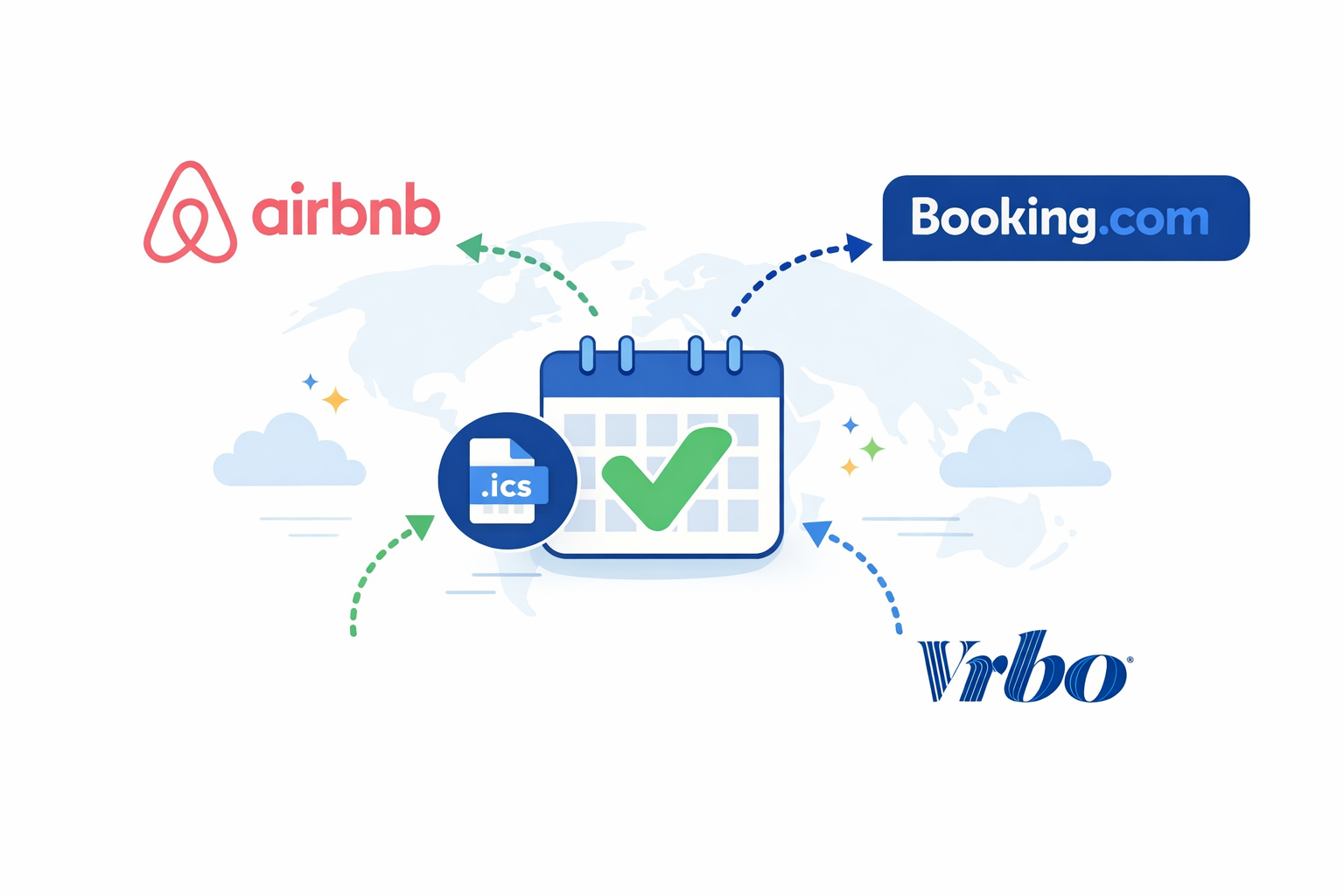
If you manage your holiday accommodation on platforms such as Airbnb, Booking.com or Vrbo, keeping your calendar synchronised is essential. Double bookings can damage your reputation, lead to penalties on platforms, and cause considerable headaches. Synchronisation via iCal is one of the simplest and most universal ways to avoid this problem, and Macufy supports it fully and flexibly.
This guide explains in detail what the iCal protocol is, how it works in Macufy, and how to set it up whether you are adding a new property to the platform or already have a property registered and want to add additional channels.
What is iCal and what is it for?
iCal (also known as iCalendar or .ics format) is a universal standard for sharing calendar information between applications. Virtually all booking platforms—Airbnb, Booking.com, Vrbo, TripAdvisor, HomeAway and many others—allow you to export their calendar in iCal format via a unique URL.
When you set up this URL in Macufy, the system periodically downloads the platform’s calendar and updates occupied and cancelled dates in real time. The result is that all your platforms are automatically synchronised, without you having to do anything manually.
What information does iCal synchronise?
The iCal protocol mainly synchronises:
Check-in and check-out dates for each booking
Booking status (confirmed, cancelled)
Manual calendar blocks made on the originating platform
Booking code (when the platform includes it in the iCal)
Important: The iCal protocol is one-way in its basic form: Macufy reads the platform’s calendar, but does not write to it. If you want to block dates in Airbnb from Macufy, you will need API integration, not iCal.
iCal vs Channel Manager: When to use each
Before setting anything up, it’s essential to understand when you should use iCal and when not.
Use iCal if...
You manage your accommodation directly on Airbnb, Booking.com or Vrbo without an intermediate channel manager
You want to synchronise the calendar of one or several platforms in Macufy quickly and easily
You have a property already set up and want to add a new booking channel
Do not use iCal if you already use a Channel Manager like Lodgify
If your property is already connected to Macufy via a channel manager like Lodgify, you should not add additional iCals for that same property. The reason is simple: channel managers already include native synchronisation with all booking platforms. Adding an Airbnb iCal to a property already synchronised via Lodgify would create duplicate data in your calendar, duplicate bookings and system conflicts.
Situation | Use iCal? |
|---|---|
Property managed directly on Airbnb/Booking/Vrbo | ✅ Yes |
Property with channel manager (Lodgify, etc.) | ❌ No |
Property with Airbnb iCal, want to add Booking | ✅ Yes |
Property with Airbnb API, want to add Airbnb iCal | ❌ No (already synchronised) |
In summary: iCal and channel managers are not compatible for the same property, but you can have several different iCals in one property (one from Airbnb, one from Booking.com and one from Vrbo, for example).
How to obtain the iCal URL from each platform
Before configuring anything in Macufy, you need to obtain the iCal URL from each platform. Here’s how to do it for the main ones:
Airbnb
Log in to your Airbnb account
Go to Listings and select the property
In the property menu, select Availability → Synchronise calendars
Click Export calendar
Copy the URL shown: it will look like
https://www.airbnb.com/calendar/ical/XXXXXXX.ics?s=XXXXX
Booking.com
Log in to your Booking.com Extranet
Go to Calendar → Calendar synchronisation
Select the relevant room or unit
In the Export section, copy the provided iCal URL
Vrbo / HomeAway
Log in to your Vrbo account
Go to the property’s Calendar
Select Import/Export calendars
Copy the export calendar URL (
.icsformat)
Tip: Save these URLs somewhere safe. Although Macufy stores them automatically, having them handy makes management easier if you need to reconfigure something in the future.
Case 1: Importing an iCal when adding a new property
If you do not yet have the property registered in Macufy and want to add it with iCal synchronisation, the process is done from the platform’s import section.
Step 1: Access the import section
Go to Macufy’s main menu and navigate to Properties → Import (/listings/import). Here you’ll find the form to add new connection keys.
Step 2: Select the provider
In the Provider selector, choose the relevant channel:
Airbnb iCal → to synchronise with Airbnb
Booking.com iCal → to synchronise with Booking.com
Vrbo iCal → to synchronise with Vrbo
Step 3: Paste the iCal URL
In the API Key / URL field, paste the iCal URL you obtained from the platform. Macufy automatically validates that the URL has the correct format for each platform. For Airbnb, for example, it checks that the URL contains airbnb.com, calendar/ical and ends in .ics.
If the URL is not valid, the system will show an error message before continuing.
Step 4: Complete the property details
As it’s a new property, Macufy needs some basic information to register it correctly in the system. A form will open with the following fields:
Basic information:
Property name (required): The name you’ll use to identify the property in Macufy
Description (optional): A brief description for internal use
Check-in and check-out times (recommended): Usual arrival and departure times. These times are used in automatic notifications to guests and the cleaning team
Time zone (required): The time zone where the accommodation is located. Essential for correct system times
Accommodation address (required for legal compliance with SES Hospedajes):
Type of establishment: Holiday Home, Apartment, Rural House, etc.
Establishment name: Official name of the accommodation
Address and additional address
Postcode
Country
Municipality (Spain only): Automatically filtered when entering the postcode
Number of rooms
Why are address details required? Macufy automatically sends guest data to SES Hospedajes of the Ministry of the Interior after each check-in. For this to work, the system needs the full address and establishment type registered.
Step 5: Save the property
Once all required fields are completed, click Save. Macufy:
Registers the property in the system
Saves the iCal URL as a synchronisation channel
Launches an initial synchronisation to import existing bookings from the platform
Redirects to the property list where you’ll see the new property active
Case 2: Adding an iCal to an existing property
If you already have a property registered in Macufy and want to add a new iCal channel—for example, because you’ve just listed your accommodation on Booking.com as well as Airbnb—the process is slightly different and designed to avoid creating duplicate properties.
Option A: From the property settings
The most direct way is from the property’s own record:
Go to Properties and access the relevant property
In the settings section, look for iCal channels for this property
You’ll see the list of iCals already set up for that property (with their originating platform and synchronisation status)
Click Add new iCal
You’ll be redirected to
/listings/import, where the system will automatically detect that you already have properties with iCal set up
Option B: From import, with automatic detection
If you go directly to /listings/import and add a new iCal URL, the system automatically checks if you already have properties with iCal synchronisation registered. If so, an intermediate step will appear with two options:
Option: Add to an existing property
A selector will show all your properties that already have iCal set up. Select the property you want to add the new channel to and click Add to this property.
The system:
Registers the new iCal URL as an additional channel for that property
Launches an immediate synchronisation to import bookings from the new channel
From then on, the property is synchronised with all configured iCal channels simultaneously
Option: Create a new property
If the iCal you’re adding corresponds to a different accommodation not yet registered in Macufy, select Create new property. The system will take you to the full registration form described in Case 1.
Managing multiple iCals in one property
One of Macufy’s most important advantages is the ability to set up multiple iCal channels in one property. This is especially useful when the same accommodation is listed on multiple platforms.
For example, a property can have simultaneously configured:
The Airbnb iCal
The Booking.com iCal
The Vrbo iCal
When any of these platforms registers a new booking, Macufy automatically imports it in the next synchronisation cycle and updates the property’s calendar. So, if a booking comes in via Airbnb on Monday and another via Booking.com on Tuesday, both are recorded in Macufy and the calendar is blocked on all connected platforms.
How often is it synchronised?
Macufy runs synchronisation of all iCal channels periodically and automatically via a scheduled process. You don’t need to do anything manually to keep calendars updated.
What happens with already imported bookings?
When Macufy synchronises an iCal, it checks if each booking already exists in the system before creating it. If the booking was already registered (identified by its booking code or UID), the system updates the data instead of creating a duplicate. This ensures data is always up to date without generating duplicate entries.
Status and management of iCal channels
From the iCal channels section in each property’s settings, you can see:
Originating platform of each channel (Airbnb iCal, Booking.com iCal, Vrbo iCal)
Associated iCal URL (truncated for security)
Status of each channel:
✔️ No issues: Last synchronisation was successful
⚠️ Issues detected: Last synchronisation failed. This may be because the iCal URL has changed (Airbnb periodically regenerates these URLs) or the platform was temporarily unavailable
What to do if a channel shows issues
If you see a warning about issues in an iCal channel, it’s most likely that the URL has changed. To fix it:
Access the relevant platform (Airbnb, Booking.com or Vrbo)
Obtain the new iCal URL following the steps described above
Delete the old channel from import and add the new one with the updated URL
Note about Airbnb: Airbnb may regenerate iCal URLs when certain changes are made to the account or listing. If you notice Airbnb bookings stop synchronising, first check if the iCal URL has changed.
Frequently asked questions
Can I combine an Airbnb iCal with the Booking.com API in the same property?
Yes, as long as they are different channels. You can have Booking.com synchronised via API and add the Airbnb iCal for the same property without any problem.
What if I have the same property in Lodgify and want to add an Airbnb iCal?
Not recommended. Lodgify already synchronises with Airbnb as part of its channel manager service. Adding the Airbnb iCal would create duplicate bookings in Macufy. Use only one method per platform.
Do bookings imported via iCal trigger automatic online check-in for guests?
Yes. All bookings imported via iCal, regardless of the originating platform, automatically trigger Macufy’s online check-in flow: the guest receives their check-in link, data is sent to SES Hospedajes after completion, and the team receives the relevant notifications.
Can I add the same iCal to two different properties?
No. Each iCal URL identifies a specific accommodation on the originating platform. Assigning the same URL to two different properties in Macufy would create data conflicts. Each property must have its own iCal URLs.
How many iCals can I add to one property?
There is no set limit. You can add as many iCal channels as platforms where you have the accommodation listed.
Summary
Action | Where to do it |
|---|---|
Add new property with iCal |
|
Add iCal to existing property | Property settings → iCal channels → Add new iCal |
View iCal channel status | Property settings → iCal channels |
Verify imported bookings | Main dashboard → Property bookings |
iCal synchronisation in Macufy is designed to be as transparent as possible: once set up, it works completely automatically and ensures your calendars are always up to date on all platforms where your accommodation is listed.